
Styles
Personalize your writing.
Create a style once and assign it to your apps. Lungoor automatically rewrites your text in your preferred tone and format.
Overview
Styles are how you teach Lungoor to sound like you. Instead of a raw transcript, Lungoor shapes your speech to match a specific tone and format - and applies it automatically every time you dictate.
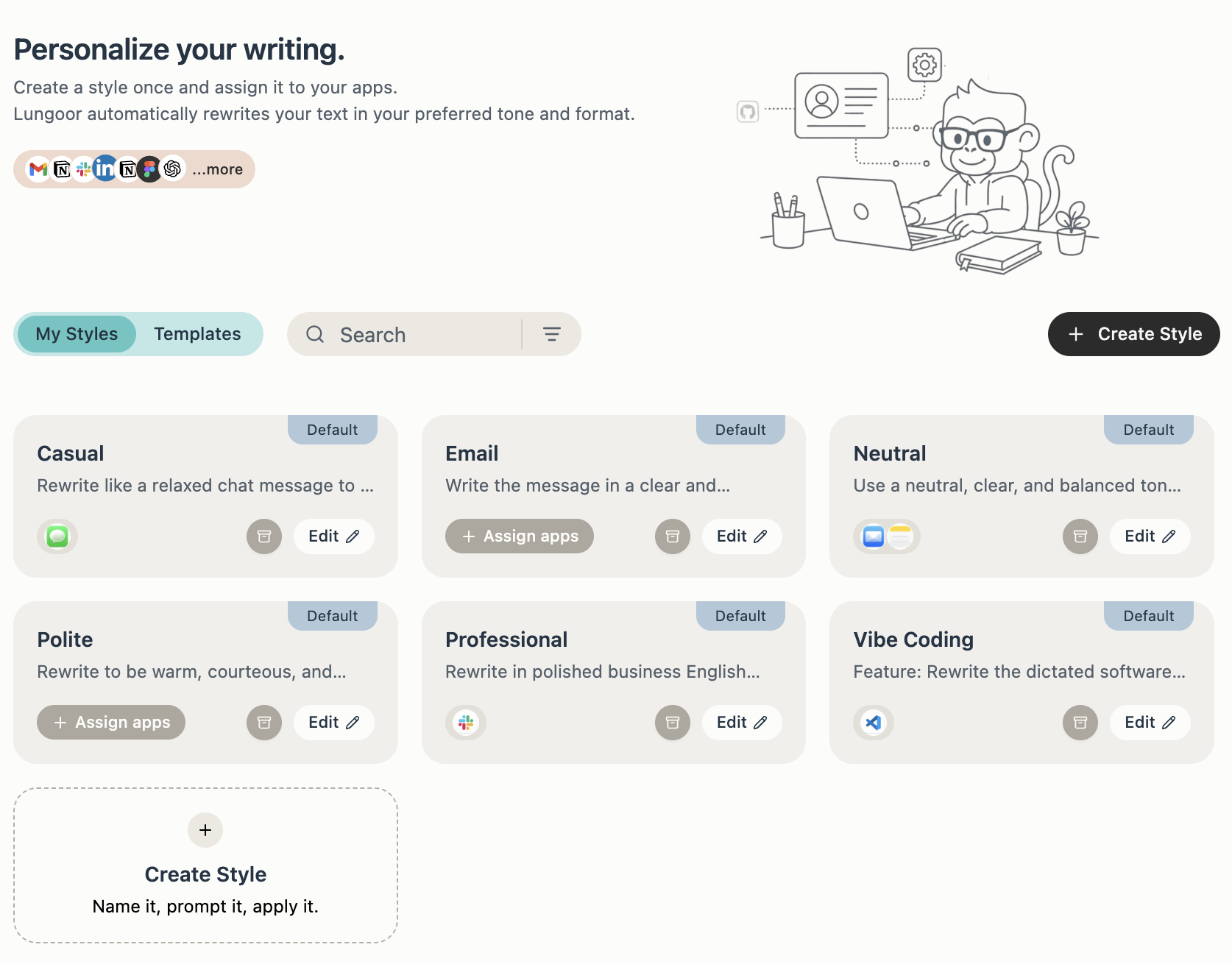
My Styles
My Styles is your personal collection - the styles you use day to day.
Each style card shows the style name, a preview of what it does, which apps it's assigned to, and options to Edit or Delete it.
Built-in Styles
Lungoor comes with six ready-to-use styles:
- Casual - Rewrite like a relaxed chat message. Perfect for texts and messages with friends.
- Email - Write the message in a clear and action-oriented way. Ideal for professional emails.
- Neutral - Use a neutral, clear, and balanced tone. Works well across most situations.
- Polite - Rewrite to be warm, courteous, and refined. Great for formal communication.
- Professional - Rewrite in polished business English. Best for important work messages.
- Vibe Coding - Rewrite the dictated software engineering context. Designed for developers.
Templates
The Templates tab gives you a library of ready-made styles built by the Lungoor team. Instead of writing a prompt from scratch, you can browse, preview, and add any template directly to My Styles with one click.
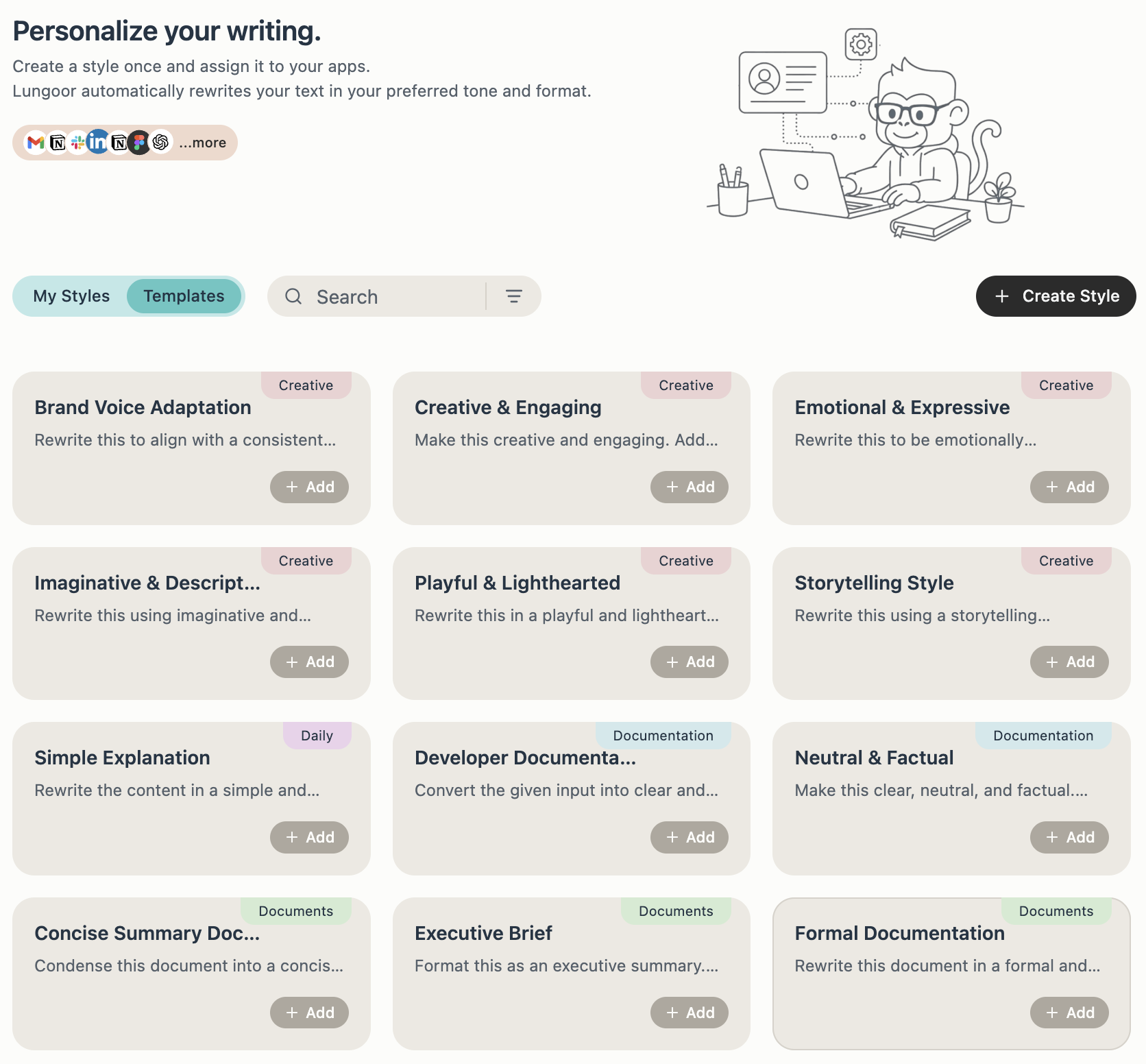
Templates are organised by category:
Creative - Brand Voice Adaptation, Creative & Engaging, Emotional & Expressive, Imaginative & Descriptive, Playful & Lighthearted, Storytelling Style
Daily - Simple Explanation
Documentation - Developer Documentation, Neutral & Factual, Concise Summary Doc, Executive Brief, Formal Documentation
To use a template, click the + Add button and it will be added to your My Styles instantly. You can then edit the prompt or assign it to apps as needed.
Create Your Own Style
You're not limited to what Lungoor provides. You can create a completely custom style that matches your exact voice, language, or use case.
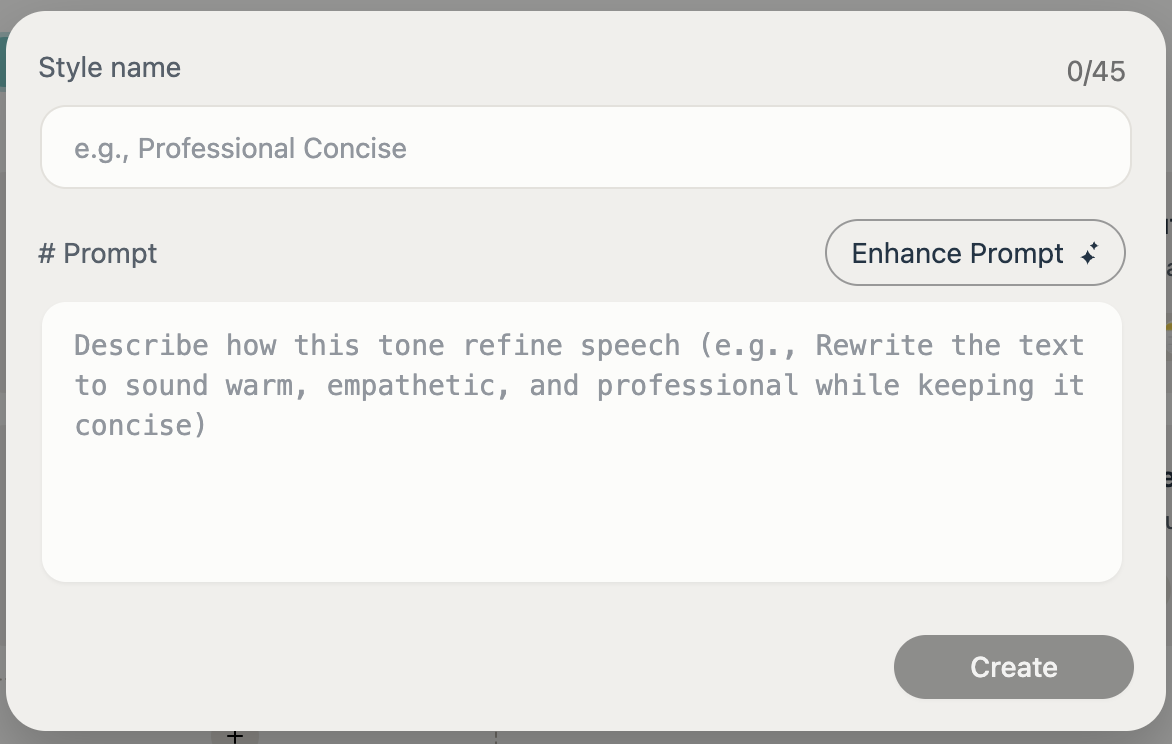
To create a style:
1. Click + Create Style
This opens the style creation modal.
2. Give your style a name
Up to 45 characters. For example, "Professional Concise" or "Friendly Casual".
3. Write a prompt
Describe exactly how Lungoor should rewrite your speech. Be as specific as you want. For example: "Rewrite the text to sound warm, empathetic, and professional while keeping it concise."
Tone is for writing style like 'formal' or 'funny', not for giving instructions. Your prompt should describe how to restyle the text, not what the AI should write or create.
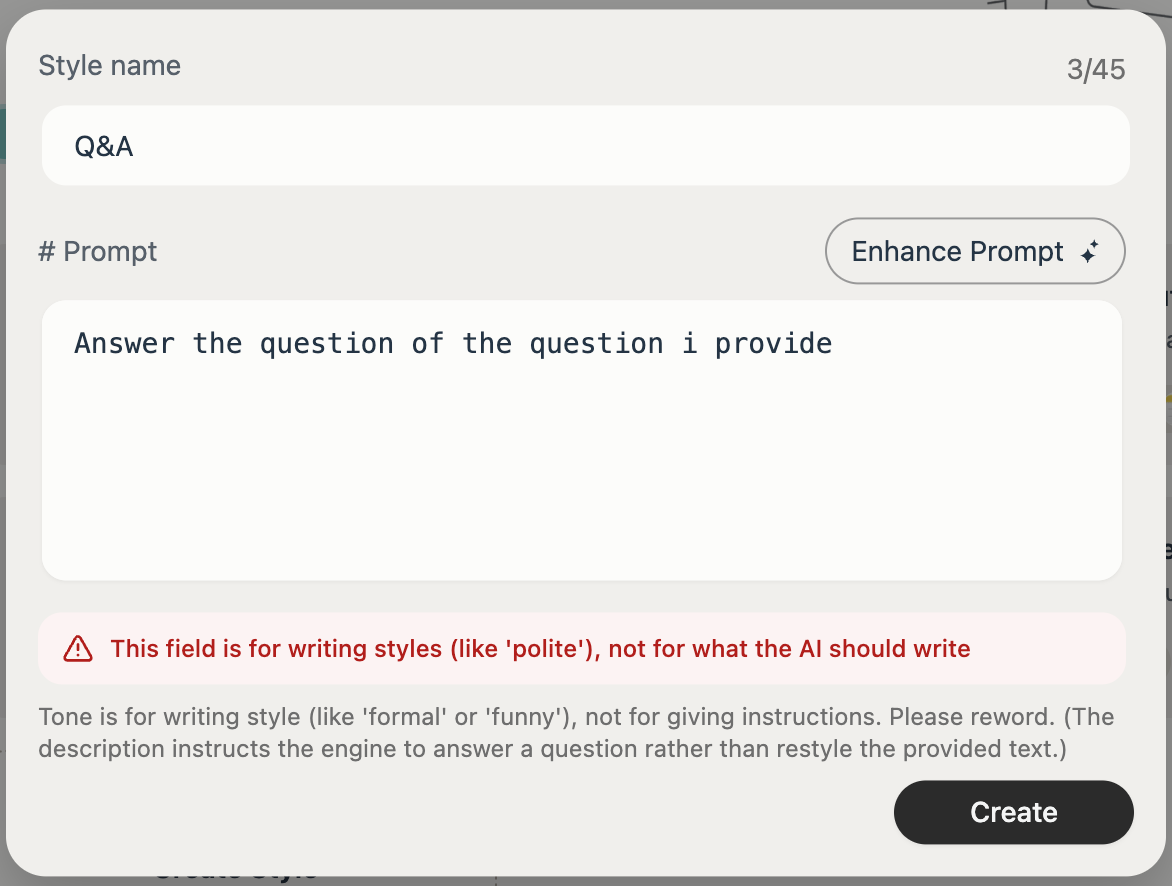
This field is for writing styles (like 'polite'), not for what the AI should write. Lungoor Voice rewrites your speech in the tone you specify - it doesn't act as an AI agent to answer questions, generate new content, or perform other tasks.
4. Enhance Prompt (optional)
Click the Enhance Prompt button to let Lungoor automatically improve and expand your prompt for better results - useful if you're not sure how to phrase your instructions.
5. Click Create
Your new style appears immediately in My Styles and can be set as default or assigned to apps.
Assign Style to Apps
One of the most powerful features is assigning styles to specific apps. When you're dictating in an app that has a style assigned, Lungoor automatically uses that style - no manual switching needed.
To assign a style to apps:
1. Click Assign apps on any style card
A modal opens showing all available apps.
2. Toggle the apps you want
Select which apps should use this style. For example, you might assign your Casual style to Messages and your Professional style to Mail.
Apps available for assignment include: Messages, Code, ChatGPT, Google Chrome, Granola, Journal, JumpCloudApp, Mail, Maps, News, Notes, Passwords, Photos, Raycast, Recordly, Reminders, Safari, Slack, Stickies, TextEdit, Thunderbird, and more.
3. Your selection is saved automatically
The style now applies whenever you dictate in those apps.
Managing Your Styles
- Edit - click Edit on any style card to update the name, prompt, or app assignments
- Delete - remove a style you no longer need
- Search - use the search bar to quickly find a style by name
- Filter - use the filter icon to sort and organise your styles
Tips
- Set one style as Default - it becomes your fallback when no app-specific style is assigned
- You can assign one style to multiple apps or assign different styles to different apps
- Styles work alongside Lungoor's language and tone settings - experiment to find what feels right for your workflow
- You can edit any template by clicking + Add, then editing it from My Styles
- Remember: styles are for rewriting in a certain tone, not for giving Lungoor other tasks to perform