
Shortcuts
Customize how you trigger Lungoor Voice.
Overview
The Shortcuts settings let you control exactly how you start recording. You can choose which key to press, which action to use (Hold, Single tap, or Double tap), and which side of the keyboard if using modifier keys.
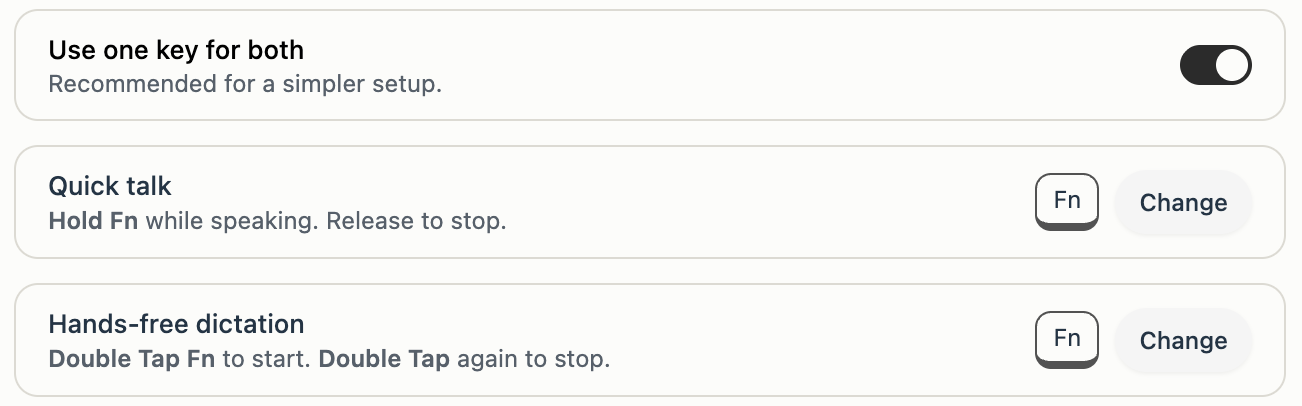
Default Shortcuts
Lungoor comes with two default recording methods:
Quick talk
Use one key for both. Recommended for a simpler setup.
Hold Fn while speaking. Release to stop. Works like a walkie-talkie - hold to talk, let go when done.
Hands-free dictation
Double Tap Fn to start. Double Tap again to stop. Great for longer thoughts where you don't want to hold a key.
Customising Your Shortcuts
You can change either shortcut to use any key and action combination. Click the Change button next to Quick talk or Hands-free dictation to customize it.
Choose a Shortcut
When you click Change, a modal opens where you set three things:
1. Action
Choose how you want to trigger the recording:
- Hold - Press and hold the key while speaking, release to stop
- Single tap - Press the key once to start, once to stop
- Double tap - Press the key twice quickly to start, twice again to stop
2. Side (for modifier keys only)
Choose which side of the keyboard:
- Left - use the left side key (for Command, Option, Control, Shift)
- Right - use the right side key (for Command, Option, Control, Shift)
Note: This is not needed for Fn since it only exists in one location.
3. Key
Choose which key to use:
- Fn - the Function key on your Mac keyboard
- fn - alternate F function mode
- Command - the Command key
- Option - the Option key
- Control - the Control key
- Shift - the Shift key
Example Shortcuts
The default shortcuts are:
Quick talk default: Hold right Option
Hold Option (right side) while speaking. Release to stop.
Hands-free dictation default: Double tap Fn
Double Tap Fn to start. Double Tap Fn again to stop.
You can change either of these to whatever feels most natural for your workflow.
Save or Reset
After customizing your shortcut:
- Click Save Shortcut to keep your changes
- Click Reset to default to go back to the original setup
Your shortcut changes take effect immediately once saved.
Tips
- Quick talk with Hold is best for quick notes and quick interactions
- Hands-free dictation with Double tap is better for longer thoughts where you don't want to hold a key
- If you have muscle memory with a different key, customise it to match what feels natural
- You can change your shortcuts anytime - experiment until you find what works best for you
- Reset to default is always available if you want to go back to the original setup
- Using modifier keys like Command or Option requires choosing Left or Right side - pick whichever is more natural for your hand position