
Audio input
Choose which microphone Lungoor uses to record.
Overview
The Audio Input setting lets you control which microphone Lungoor Voice uses for recording. If you have multiple microphones connected - like a USB headset, external mic, or your built-in Mac microphone - you can choose which one you prefer.
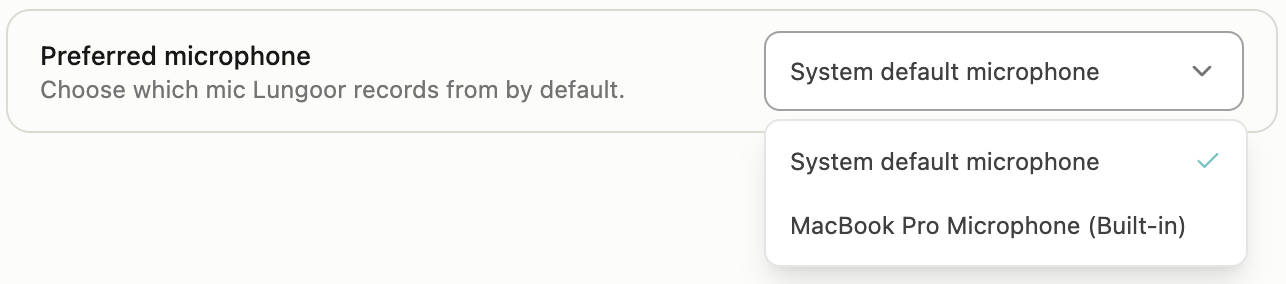
Preferred Microphone
Choose which mic Lungoor records from by default.
By default, Lungoor uses System default microphone - whatever microphone is set as your Mac's default in System Settings.
If you want to use a different microphone - like an external USB headset or a professional recording mic - just click the dropdown and select it from the list.
Available Options
The dropdown shows all microphones currently connected to your Mac:
- System default microphone - macOS's currently selected default
- MacBook Pro Microphone (Built-in) - your Mac's built-in microphone
- Any external microphones - USB headsets, external mics, or other audio devices you have plugged in
Changing Your Microphone
To switch to a different microphone:
1. Click the Preferred microphone dropdown
It currently shows whichever mic you're using.
2. Select a different microphone from the list
Your choice is saved immediately.
3. Start recording
Lungoor will now use the microphone you selected for all new recordings.
Tips
- Use System default microphone if you want Lungoor to follow whatever you set as your Mac's default in System Settings
- If you have a USB headset, selecting it here ensures Lungoor always records from that headset and not your built-in mic
- If you switch microphones often, just come back to this setting and pick whichever mic you're currently using
- External microphones usually give better audio quality than built-in mics - if you have one, it's worth selecting it for Pro Mode transcriptions
- Your microphone selection persists - Lungoor will keep using the mic you chose until you change it again